Login: Computer code
Login: Storeline User Name & Password
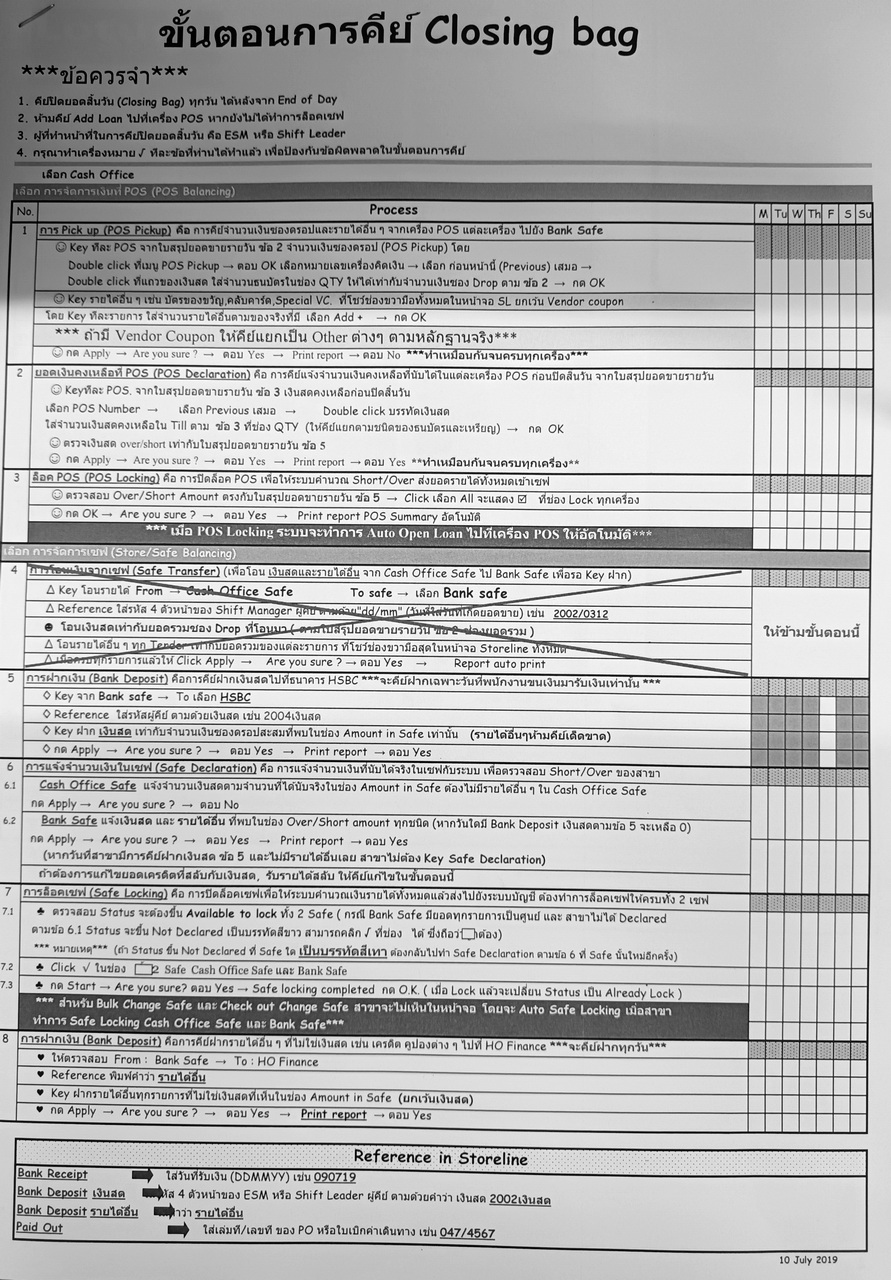
1. POS Pickup
(ซองดรอป/เครื่อง/วัน)
「Double Click it, then click 'OK'」
1.1) Select: # of POS @ POS Number.
> Select 'Previous' (left top)
> Double Click @ 'เงินสด'
(ดูรายงานสรุปการขาย ดรอปเงินสด เข้าเซฟเท่าไหร่)
* จากนั้น ให้ใส่จำนวนนับของแบงค์พัน @ Qty เช่น 10,000.00 = 10ใบ
** กด 'Enter' ทุกครั้งหลังจากใส่จำนวนนับเรียบร้อยแล้ว
(POS #1 กด'OK'เลย เพราะไม่มีการขาย)
>กด 'Enter'
> กด 'OK'
> กด 'Apply'
> กด 'Yes' > กด 'No' : No Print
「เครื่อง POS อื่นๆทำตามขั้นตอน」
1.2) Select: O2O (Rider) # 106 @ POS Number.
> Select 'Previous' (left top)
> Double Click @ 'เงินสด'
(ดูสรุปการขาย @ เครื่อง Rider เงินสดเท่าไหร่, มีจ่ายด้วยบัตรเครดิตเท่าไหร่)
* จากนั้น ให้ใส่จำนวนเงินที่ปรากฎจริงเป็นหน่วยนับหลักบาท @ Qty (Popup Window)
「หากมียอดชำระเงินเป็นบัตรเครดิต ให้เราใส่เลข 0 @ Qty (Popup Window, กด Add[+]) แล้วกด 'OK'」
* กด 'Enter' ทุกครั้งหลังจากใส่จำนวนตัวเลขเรียบร้อยแล้ว
>กด 'Enter'
> กด 'OK'
> กด 'Apply'
> กด 'Yes' > กด 'No' : No Print
2. POS Declaration
(คีย์เงินหลังปิดEnd)
* สาขา3028 ปิดก่อนระบบปิดEnd จึงข้ามไปทำข้อถัดไป
3. POS Locking
(ล็อกPOS)
* ตรวจทานยอดเงินคงเหลือใน POS ตรงกันกับรายงานไหม หากตรงให้ข้ามไปทำข้อ 4. ก่อน
> กด Select All
> กด'OK'
4. POS Declaration Report
(รายงานเงินคงเหลือในPOS)
> กดเลือก หมายเลขแต่ละPOS @ Report
> กด 'Previous'
> กด 'Print'
* ทำจนครบทุกPOS#1-3 (อื่นๆไม่ต้องพิมพ์) เมื่อพิมพ์รายทุกPOSแล้วใหกลับไปทำข้อ 3. เพื่อล็อกPOS
5. POS Over/Short Report
(ข้ามไปทำ ข้อ II)
§ข้อควรจำ ต้องกด 'Previous' ทุกครั้งเมื่อทำข้อ 1.1, 1.2 และ ข้อ 4. (ข้อ 4. ต้องพิมพ์เอกสารเพื่อเป็นหลักฐาน)
1. Safe Transfer
(ข้ามไปทำข้อ 2.)
2. Safe Declaration
(คีย์เงินในเซฟ ทุกๆหลักหน่วยนับ)
2.1) Cash Office Safe (Popup Window)
> Double Click @ 'เงินสด'
> ใส่จำนวนเงินนับในเซฟ ทุกหน่วยนับ
* ตัวอย่าง ธนบัตรฉบับละร้อย มีจำนวน60,000บาท จะต้องใส่จำนวนนับตรงหลักร้อยเท่ากับ60 @ Qty แล้วกด Enter
** ธนบัตรฉบับละห้าสิบ มีจำนวน50,000บาท จะต้องใส่จำนวนนับตรงหลักห้าสิบเท่ากับ1000 @ Qty แล้วกด Enter
(ทำจนครบทุกหน่วยนับ 20, 10, 5, 2 และ 1)
「ดูยอดรวม ใต้กรอบว่าตรงกันกับยอดเงินในเซฟหรือยัง (หน้าต่างหลัง) หากตรงกันแล้วให้กด 'OK'」
> กด 'OK'
> กด 'Apply'
> กด 'Yes'
> กด 'Yes' :Print
2.2) Select: Bank Safe @ Drop down list.
(ดูยอดเงิน @ หัวข้อ Amount in Safe นับจากประกันภัยมารับเงินครั้งล่าสุด เปรียบเทียบยอดเงินบันทึกมือเงินแหนบ ว่าตรงกันไหม)
> Double Click @ 'เงินสด'
* จากนั้น ให้ใส่จำนวนตัวเลขให้ตรงกันกับ (หน้าต่างด้านหลัง) ที่หน่วยนับเหรียญบาท @ Qty กด Enter
> กด 'OK'
「จากนั้น ให้ใส่จำนวนตัวเลขให้ตรงกันกับทุกรายการ (ทุกบรรทัดที่ปรากฎยอดเงินให้ย้ายจากขวา มาซ้าย) ตรวจทานดูว่ายอดเป็นศูนย์ทุกบรรทัดแล้ว」
วิธีทำ ดังนี้
Double Click another list at 'Over/Short Amount' column.
ใส่ตัวเลขให้ตรงกันกับจุดที่เราต้องการย้ายเงินไปอยู่ด้านซ้าย (Amount in Safe) @ Amount (Popup Window), กด Add[+] หรือ Sub[-] แล้วกด 'OK'
* ตรวจทานสมการ A = B = (-C ) *
** Amount = Amount in Safe = (- Over/Short Amount) **
> Apply
>Yes
> Yes : Print
> Cancel : Close window
3. Safe Locking
(ล็อกเซฟ)
「Double click to open new window」
3.1) ติ๊ก 1 และ 2 @ Lock column.
> 'Start'
> 'Yes' (รอ Popup 'Safe-Locking Completed' ปรากฎ)
> 'OK'
> 'Close' เพื่อปิดหน้าต่าง
4. Bank Deposit
(ฝากเงินธนาคาร)(บรรทัดเงินสด-เงินแสน(ห้ามแก้ไข))
「Double click to open new window」
* พิมพ์ 'รายได้อื่น' @ ช่อง Reference
จากนั้นนำจำนวนตัวเลขในช่องขวา (ถัดจากบรรทัด'เงินสด') ย้ายมาไว้ช่องซ้ายมือ ทุกรายการ ไล่จนครบถึงบรรทัดสุดท้าย
วิธีทำดังนี้
1.) Double click รายการอื่นๆถัดจากบรรทัดเงินสด
2.) ใส่จำนวนตัวเลข @ Amount (Popup Window)
3.) กด Add [+], กด 'OK'
* ตรวจทำให้ครบทุกบรรทัดที่ปรากฎยอดเงิน จนถึงบรรทัดสุดท้าย
** วิธีตรวจสอบความถูกต้อง ยอดเงินสด @ Amount in Safe จะเท่ากันกับ ยอดรวมด้านล่าง (right coulum)
> Apply
>Yes
> Yes : Print
> Cancel : Close window
§ข้อควรจำ II (Store/Safe Balancing) ต้องกด 'Print' ข้อที่ 2 และ ข้อที่ 4. (ข้อ 2. แบ่งย่อยเป็น 2.1 และ 2.2 และข้อ2.2ต้องพิมพ์ตัวเลขในช่องหลักหน่วยบาทเท่านั้น)
CLOSING METHOD IS EXECEL FILE, DISPLAYING ON DESKTOP.
KEEP THE PRINTED EDC REPORT AFTER SYSTEM ENDING, ATTACHING TO A4 PAPER TO BE THE LAST DOCUMENT OF CLOSING PAPERS.
SIGN ALL YOUR EMPLOYEE'S I.D. PAPERS THAT WE HAVE PRINTED FROM COMPUTER, AFTER THAT GATHER AND KEEP THEM JUST ONE FILE.
Login: Computer code
Login: Storeline User Name & Password
Select: (C) Cash Office
> Store/Safe Balancing
> (6) Bank Receipt
(Double Click it to open new window)
> Change: 'HSBC' @ Bank's Dropdown list
> Type: 'ddmmyyyy' @ Reference (ติดกันห้ามมีอักขระพิเศษ)
「Double Click @ 'เงินสด'」
§ จากนั้นใส่จำนวนนับของธนบัตรแต่ละหน่วยนับในหน่วยนับนั้นๆ เช่นธนบัตรฉบับละ100บาท จำนวน80,000บาท เท่ากับ800ใบ @ Qty หน่วยนับหลักร้อย แล้วกด Enter, ธนบัตรฉบับละ50บาท จำนวน10,000บาท เท่ากับ200ใบ (ใส่จำนวนนับที่ช่องธนบัตรฉบับละห้าสิบ) แล้วกด Enter เพื่อใส่จำนวนนับธนบัตรฉบับอื่นๆต่อไป
* ดูยอดยอมรวมจำนวนเงินที่เรานำเข้าข้อมูลในคอมพิวเอตร์ และใบนำฝากจากธนาคารต้องเท่ากันเสมอ *
> 'OK'
(หลังจาก กดตกลงแล้ว ยอดเงินจะบวกเข้ามาในหน้าต่างที่เรากรอกข้อมูลธนาคาร, ddmmyyyy of Reference @ Amount in Safe อัตโนมัติ)
> Apply
> Yes
> Yes : 'Print'
> Cancel : Close Window
Login: Computer code
Select: (A) Stock Management
> Receiving
> Receiving From Distribution Centre
* จะปรากฎข้อมูล 908:905 ให้ดูเลขที่ BOL ของเอกสารที่ได้รับจากดีซี (Dirtribution Centre)
(Otherwise, Receiving From Supplier)
* หลังจากตรวจรับนับสินค้าจากVendorด้วยCMAแล้ว ต้องกดนำส่งข้อมูลเพื่อให้ข้อมูลนั้นๆเข้าสู่ระบบStoreline
** ให้คีย์เลขที่ PO ที่ได้รับจากvendor นั้นๆ *
> Click: 'Accept Delivery'
(Do confirm and complete either DC or Vendor document, on the right-top of window)
Login: Computer code
Double Cilck: icon รูปมือบนเดสท็อป
> Select: 'Other' TAB
> 'iTouch'
(US&PW of SSM)
> Log Out
> 'Order Review'
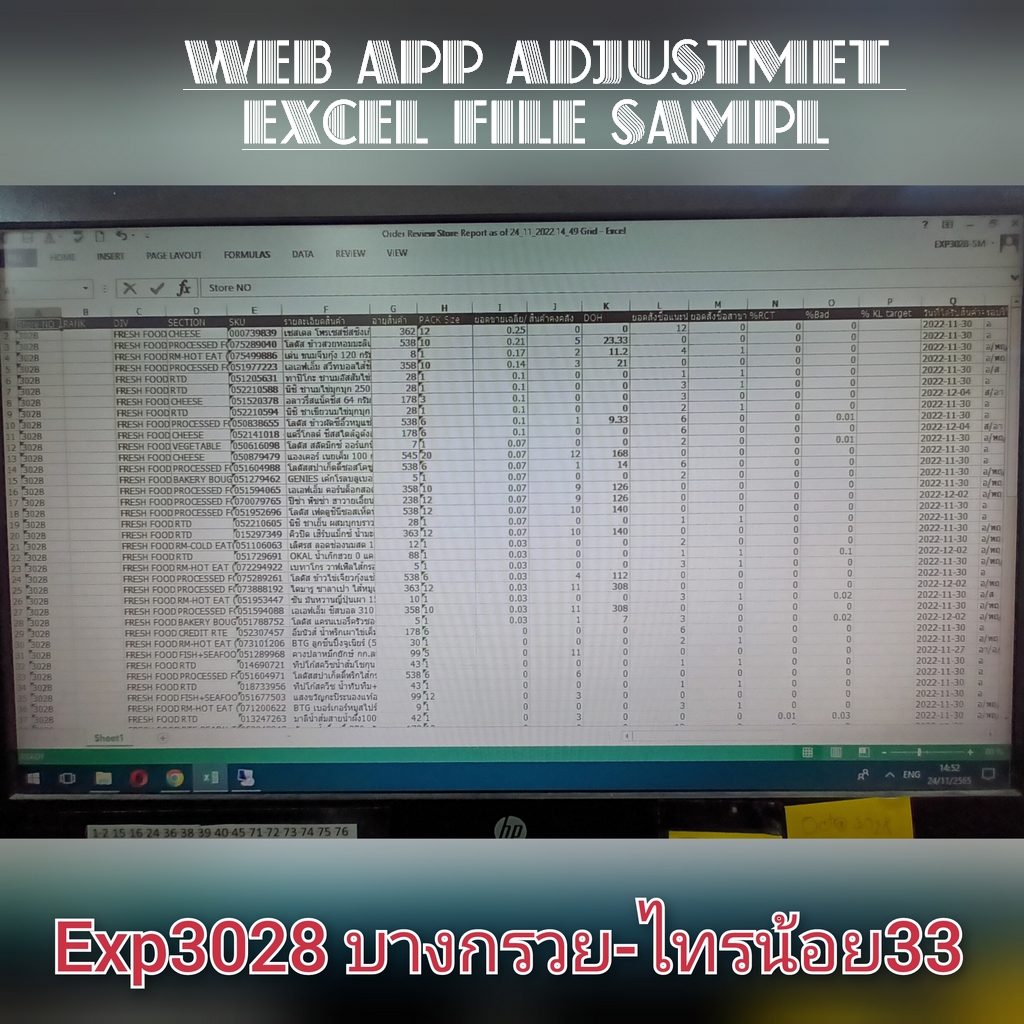
ใส่จำนวนเพิ่ม-ลดตามลำดับตรงคอลัมน์แถบสีเหลือง จนครบทุกประเภทสินค้าโดยสามารถเลือกหมวดหมู่สินค้าแต่ละประเภทได้บน Dropdown list ด้านบน
> 'Download' Excel File
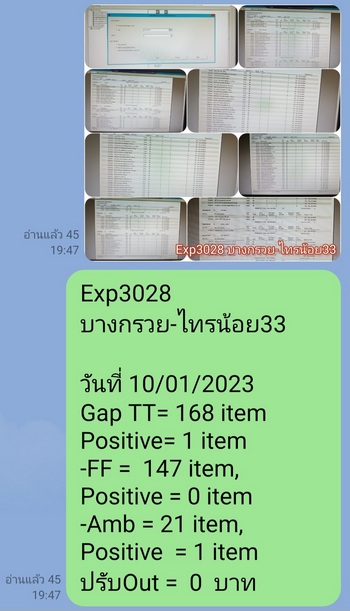
「Taking the photo from excel's file to improve the action that we have done already. And then, share it on Line's Application at Knownloss GSM's group.」
Login: Computer code
Login: Storeline User Name & Password
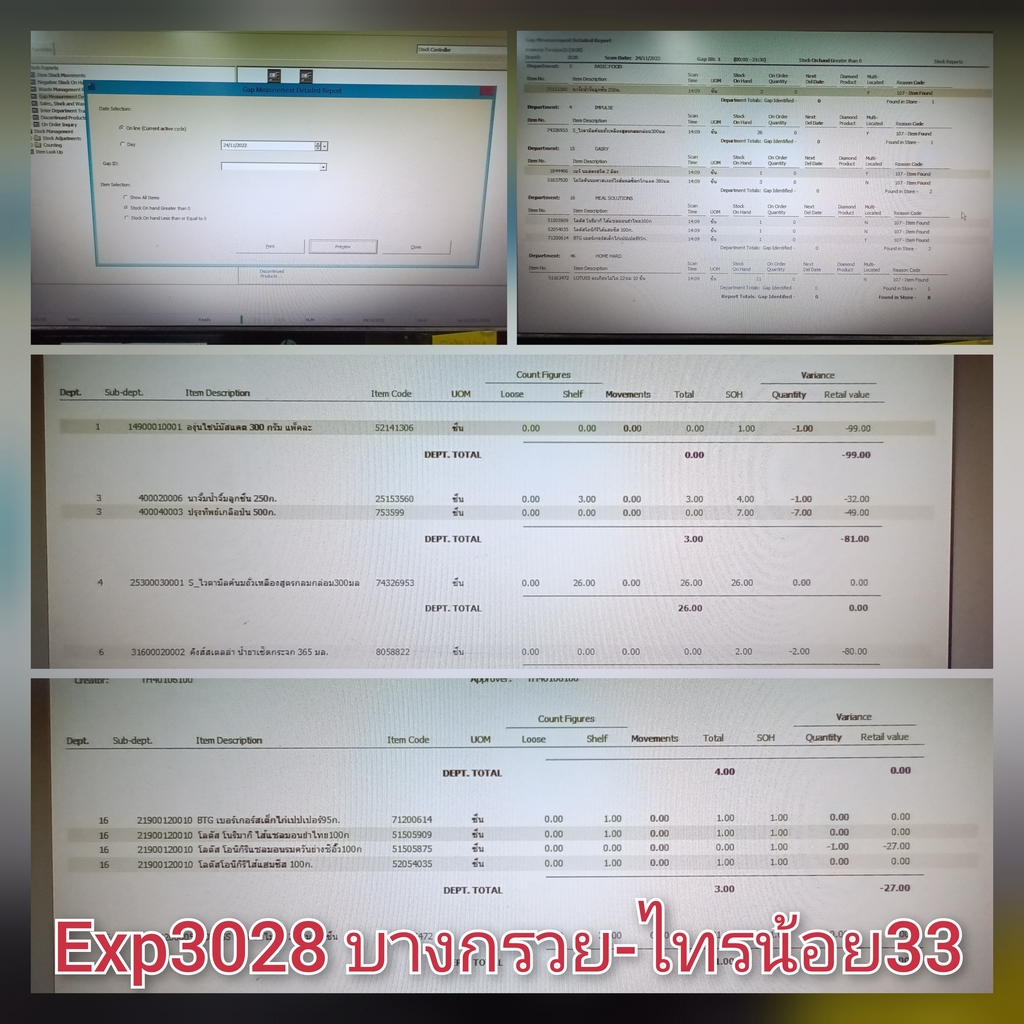
Select: (B) Reports
> Stock Report
> Gap Measurement Detailed Report
> Select: Stock On Hand Greater Than 0
> 'Preview'
Login: Computer code
Login: Storeline User Name & Password
Select: (B) Reports
> Stock Report
> Negative Stock On Hand Report
Select the alternative choices that we have prefered to make the decision approving the negative items.
Login: Computer code
Login: Storeline User Name & Password
Select: (B) Reports
> Stock Report
> Item Stock Movement
> 'Key' the digit of items
> Select: 'Period' of Calendar
> Select: 'Preview'
Login: Computer code
Login: Storeline User Name & Password
Select: (A) Stock Management
> Stock Report
> Counting
> Select: 'Stock Count Book'
> Click: 'New'
> Type: 'Topic' @ Description
> 'OK'
Login: Computer code
Login: Storeline User Name & Password
Select: (A) Stock Management
> Stock Report
> Counting
> Select: 'Stock Count Entry'
(It is displaying the names of Topic that we have created already, then select it.
> Click: 'Display Sheets' (on left-top)
> Select: 'Shelf' @ Count Area
> Type: '1' @ Location
Input the digit of items, pressing 'Enter' and then, input the digit of number that we have counted hornestly (0 or another quantity). Do all of items one by one till the last.
> 'Save'
> Click: 'Hide Sheet'
> Click: 'Report' (on left-top)
> Select: 'the center of Topic' (All the times)
> 'OK'
> 'Preview'
> 'Approve' (the Batch)
Login: Computer code
Login: Storeline User Name & Password
| SALE STORELINE TOTAL | = A |
| FRESH FOOD | = B |
| AMBIENT (AMB) | = A-B |
| CUST COUNT/AVERAGE | = C |
| JUNGLE COFFEE | = D |
| TRUE WALLET | = E |
SALE STORELINE TOTAL = A
Select: (B) Reports
> Store Report
> Store VAT Report (Thailand)
> 'Preview'
The Result of Sale Storeline total Report will be appeared at the end of document.
FRESH FOOD REPORT = B
Select: (B) Reports
> Department Reports
> Department And Subdepartment Sales Analysis
> Select: '1-2,15-16, 24, 36-38-39, 40-45, 71-72-73-74-75-76' (right column)
> 'Preview'
The Result of Fresh Food total Report will be appeared at the end of document.
CUSTOMER COUNT = C
Select: (B) Reports
> Cashier Reports
> Operator Audit Report
> Select: 'Cashier'
> Click 'Select All'
> 'Preview'
The Result of customers' amount is displayed on the second digit at the end of document.
JUNGLE COFFEE = D
Select: (B) Reports
> Department Reports
> Item Sales Analysis Report
> Select: '45'
> Click 'Select All' (Sub Department-2nd square)
> 'Preview'
Click onto the 4th or 5th of pages to collect the amount of 'Sale Quantity' and 'Amount of Sale' in Value of them. On the other hand, about 'WINE' we select the number of '37' of item sale.
TRUE WALLET = E
Select: (A) Stock Management
> Electronic Jounal (EJ)
(Double Click at the 1st of Lines (current) or another line of date we preferred to look for.)
> Select: '7' Item Sales Analysis Report
> Select: 'E-Wallet' (Dropdown list)
> 'Search'
The result of processions and amount of values are demonstrated at the section of Jungle Coffee's description that we are looking for it.
> 'Close' the window
RTC/WASTE = F
Select: (B) Reports
> Stock Reports
> Waste Management Report
> Select: '3rd' Square
(Select: From 「 Current 」 To 「 Current 」 )
> Select: 'Preview'
The result of 'Reduce To Clear' and 'Waste' are displaying at the end of second column.
Login: Computer code
Select: 'All' TAB
> My Communication
> SSM (Name)
> Click: Title of Share Point
> 'Download' the attached files.
Login: Computer code
Select: 'IT Solutions' TAB
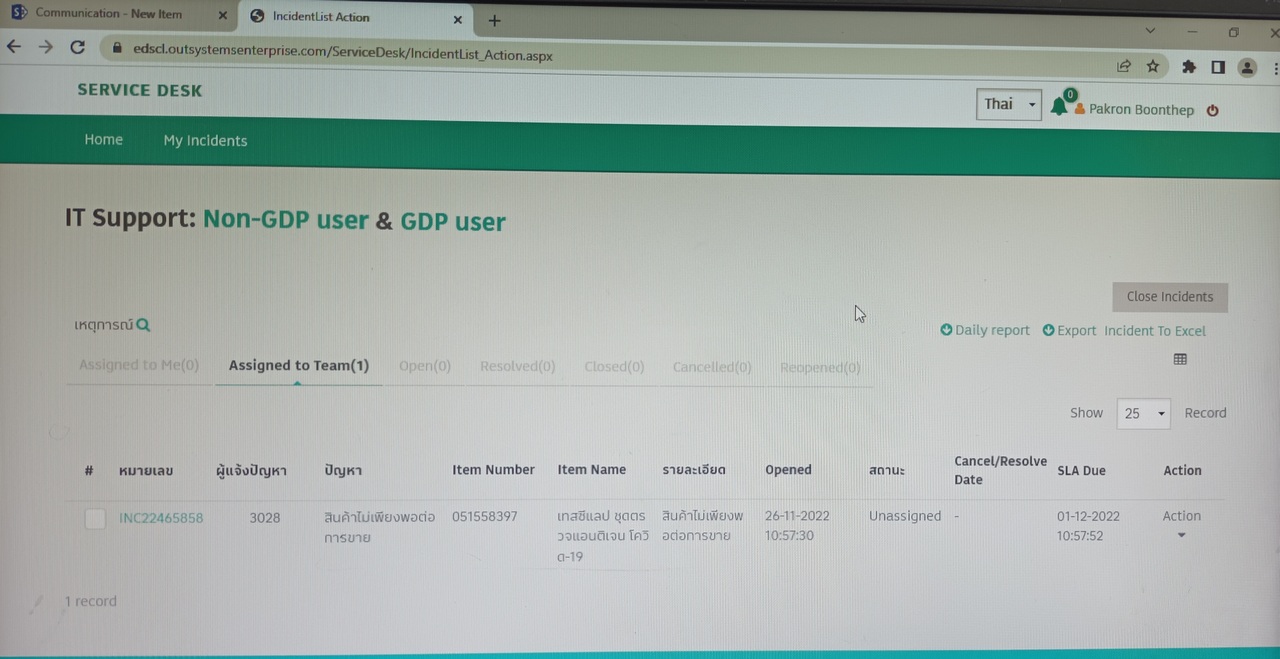
> Service Desk
> Support Office
> FILL: Categorization
> FILL: Note
「ชื่อเรื่องปัญหาของคุณ.........」
「รายละเอียดและปัญหาเพิ่มเติม」
> Click: 'ส่ง'